2025. 11. 11. 23:07ㆍDynamics365 ERP/Data Integration
Dynamics365 F&O의 Database 를 외부로 복사하는 방법 중 하나인 Azure Synapse Link에 대해서 알아보겠다.
1. Azure Synapse Link란 무엇인가?
Azure Synapse Link는 기존에 Export to data lake 를 대체해서 나온 기능이다.
BYOD의 단점을 보완하고 Dataverse의 Synapse Link 기능의 장점을 잘 섞어서 만들어진 기능인데 꽤나 강력한 기능이다.
Microsoft 문서에 나온 특징은 다음과 같다.
- You can choose both standard and custom finance and operations entities and tables.
=> Entity 뿐만 아니라 일반적인 Table 도 Export가 가능하다.(BYOD는 Entity만 가능했지만 Table도 Export가 가능해졌다)
- Continuous replication of entity and table data is supported. Create, update, and delete (CUD) transactions are also supported.
=> CUD 트랜잭션 포함해서 지속적인 Entity와 Table 복사가 이루어진다.
- You can link or unlink the environment to Azure Synapse Analytics and/or Data Lake Storage Gen2 in your Azure subscription. You don't have to go to the Azure portal or Microsoft Dynamics Lifecycle Services for system configuration.
=> 설정을 위해 굳이 Azure portal이나 LCS에서 할 필요없이 Azure Synapse Link나 Data lake storage Gen2에서 설정하면된다.
- You can choose data and explore by using Azure Synapse. You don't have to run external tools to configure Synapse Analytics workspaces.
=> Azure Synapse를 통해 데이터를 조회하고 탐구할수 있다. Synapse Analytics workspaces를 구성할 때에 외부 Tool은 필요없다. (이 특징은 Spark를 사용해야만 가능한 기능같다. csv로 증분 업데이트를 하면 지원하지 않는다.)
- All features of Azure Synapse Link for Dataverse are supported. These features include availability in all regions, saving as Parquet Delta files, and restricted storage accounts.
=> 모든 Azure Synapse Link for Dataverse 에서 제공하는 기능도 사용가능하다.
- The table limits in the Export to Data Lake service aren't applicable in Azure Synapse Link for Dataverse.
=> 테이블 수 제한이 없다.
- By default, saving in Parquet Delta Lake format is enabled for finance and operations data, so that query response times are faster.
=> 쿼리 응답시간이 빠른 parquet 파일로 생성이 가능하다. (사실 parquet 파일이 뭔지는 잘모르겠다. 데이터 분석쪽에서는 유명한거 같기도 한데, 사용해보니 Azure Synapse Analytics에서 직접적인 쿼리 사용이 가능했다.)
장점 밖에 없는것 같지만, 거의 유일한 단점이 하나 있다면 바로 비용적인 측면이다.
Spark 기능을 24시간 가동하게 된다면 일단 70만원부터 비용이 들게되고 Azure Data Factory 까지 쓴다면 추가적으로 비용이 발생할 수 있기 때문에 데이터 동기화 주기를 적절히 설정하는 것이 매우 중요하다.
2. Dynamics365 for Azure Synapse Link 구조
Synapse Link 를 구현하는데에는 크게 2가지 방법이 있다.
다른 블로그에 이 2가지 기능에 대해 아주 명확하게 설명한 그림이 있어서 그림과 함께 살펴보겠다.
1) CSV 형태로 증분 파일을 생성 (MS문서 : Access incremental data changes from finance and operations)
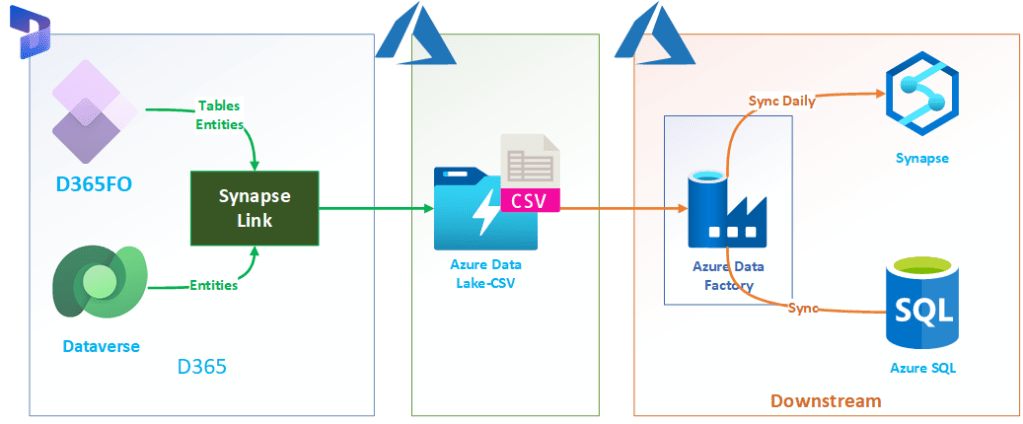
- 이 방법은 Data Lake 에서 직접적으로 데이터분석을 할 필요가 없을 경우에 사용하면 좋은 방법이다.
- 생성, 변경, 삭제된 데이터만 증분으로 csv 파일을 생성한다.
- Spark 가 필요없기 때문에 Azure Data Factory 와 Data Lake에 대한 비용만 부담하면된다.
- 그러나 증분된 파일에 대한 삭제관리와 트리거 같은 설정이 복잡하다.
2) Parquet 형식으로 생성 (MS문서 : Choose finance and operations data in Azure Synapse Link for Dataverse - Power Apps | Microsoft Learn)
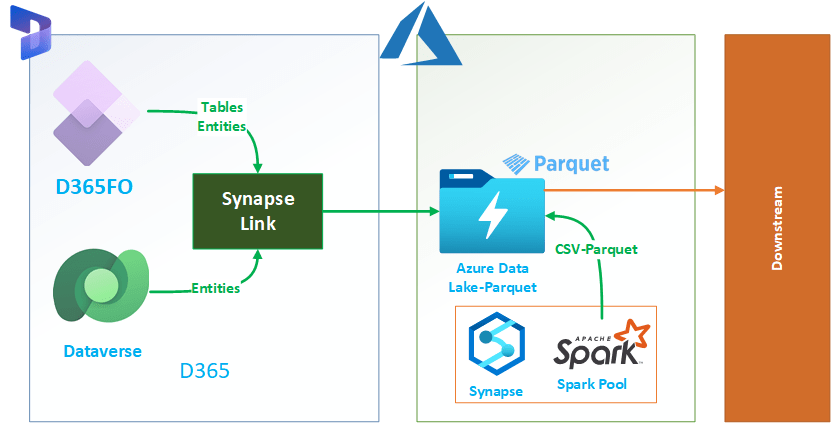
- 이 방법은 Data Lake 에서 직접적으로 쿼리를 분석할 때에 좋은 방법이다.
- 위 방법과 달리 증분이 아닌 전체 데이터에 대해서 하나의 데이터셋에 데이터변경점을 입력한다.
- Spark를 사용해야 하기 때문에 비용이 최소 월 70만원 부터 시작한다. (24시간 가동시)
3. 설정하기
각 방법에 대한 설정방법은 MS 문서의 가이드를 따라가면 되는데, MS문서의 내용 앞 뒤로 내용을 추가해서 설명하겠다.
(작성자 생각 : 왜 MS 문서는 꼭 하나의 가이드에 적지않고 다른 문서를 찾아야하는 번거로움을 만드는 걸까)
1) Parquet 형식으로 생성
우선 Azure에서 Dynamics365 와 같은 Region으로 Azure Synapse Analytics를 생성하면 Blob storage 가 같이 생성된다.
Analytics 생성 후 Workspace 에서 Apache spark pool까지 생성해주면 된다.
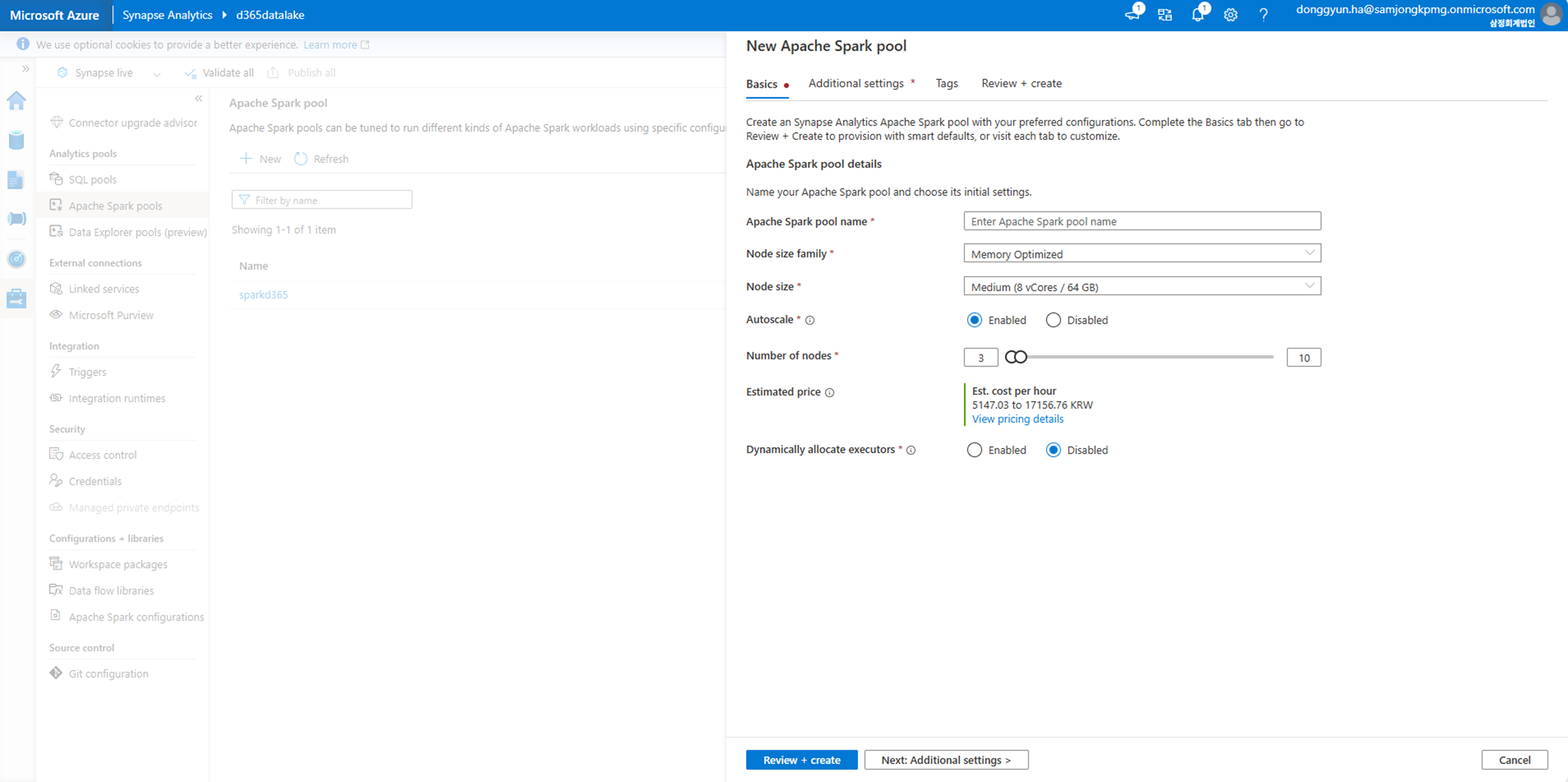
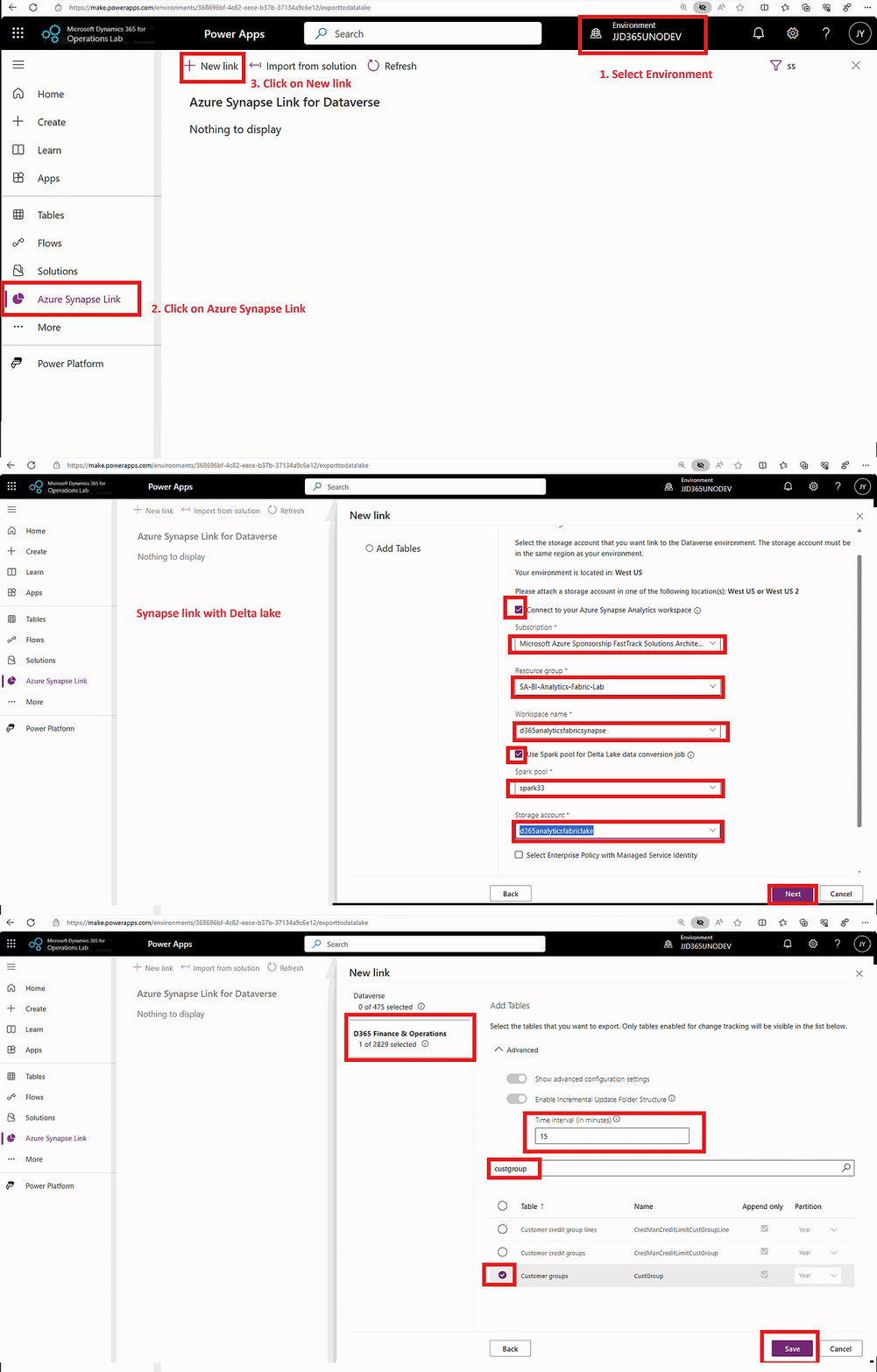
그 다음은 아래 지침을 잘 따라가면 바로 설정이 가능하다.
- Sign in to Power Apps and select the environment you want.
- On the left navigation pane, select Azure Synapse Link.
- On the command bar of the Synapse Link page, select + New link to data lake.
- Select Connect to your Azure Synapse Analytics workspace, and then select the Subscription, Resource group, and Workspace name.
- Select Use Spark pool for processing, and then select the precreated Spark pool and storage account.
- Select Next.
- Add the tables you want to export. You can choose finance and operations tables provided the prerequisites are met.
- Select Advanced, select Show advanced configuration settings and enter the time interval, in minutes, for how often the incremental updates should be captured. The options Append only and Partition available at the table level are ignored for finance and operations tables because the system determines the partitioning strategy.
- Select Save. Tables selected are initialized and ready for reporting.
* 설정할 때에 Tenant 에 최초로 연결할 경우 아래와 같은 에러가 발생할 수 있다.
1) 다음 앱이 <GUID> 테넌트에 없습니다.

해결책 : PowerShell에서 아래 Script를 실행시키면 된다.
 Install-Module -Name Az -AllowClobber -Scope AllUsers
 Connect-AzAccount
 New-AzADServicePrincipal -ApplicationId '<GUID>'
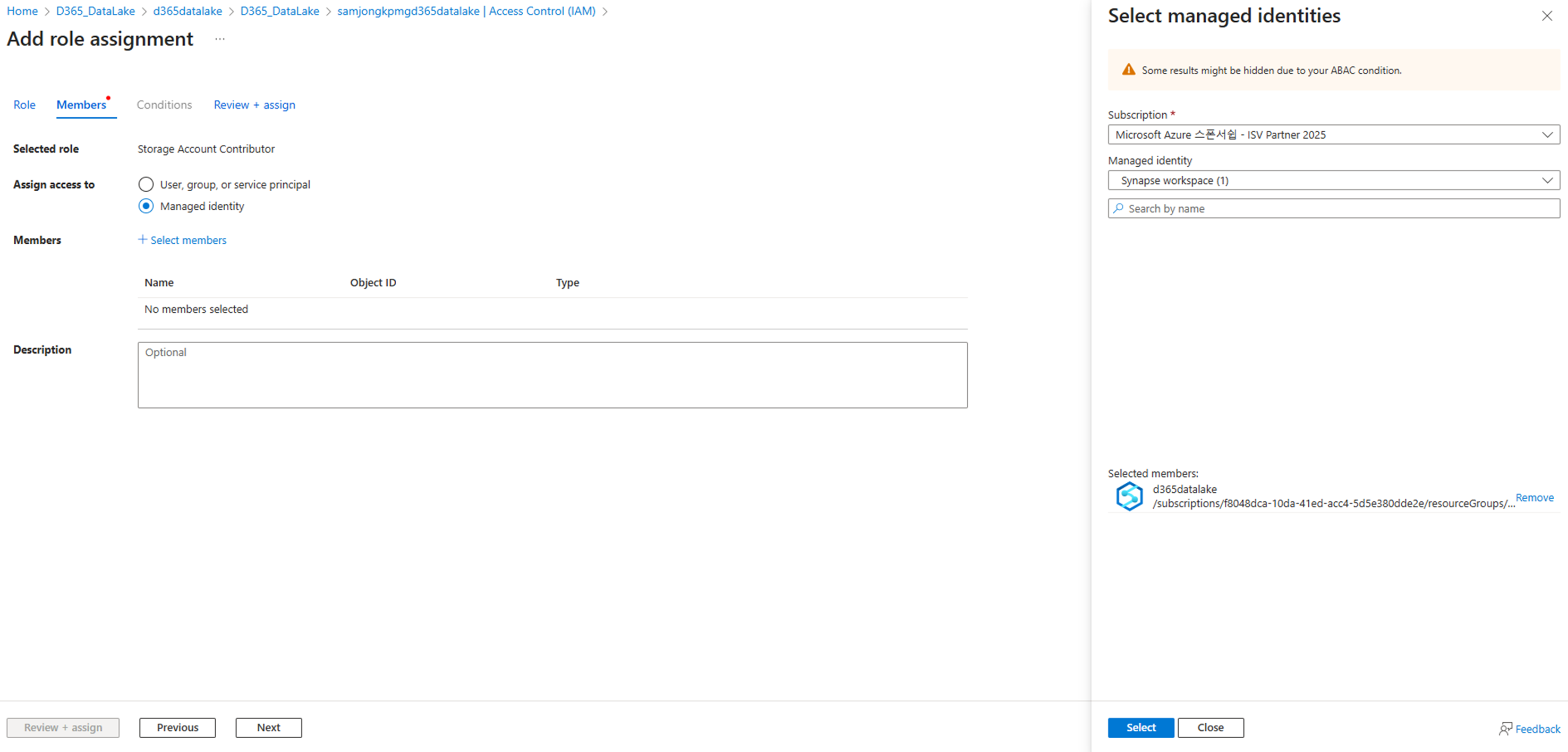
2) 403 스토리지 계정에 액세스 할수 없습니다.

해결책 : Storage 찾아가서 IAM > Storage account contributer > Managed identity > Synapse workspace 선택해서 권한을 할당하면 된다.
2) CSV 형태로 증분 파일을 생성
이 방법은 굳이 Azure Synapse Analytics 를 생성할 필요가 없기 때문에 (물론 연결해도 상관은 없다) 바로 Blob storage를 생성하면 된다. 생성할 때에 "계층 구조 네임스페이스" 반드시 체크하는 것만 잊지말고 생성한다.
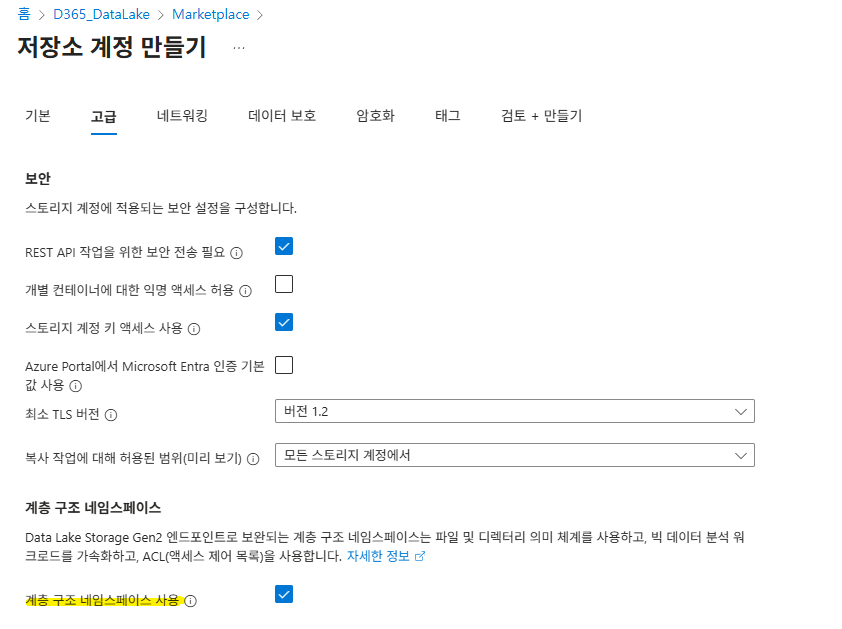
역시 마찬가지로 다음부터는 MS의 지침을 잘 따라가보도록 하자.
- Sign in to Power Apps and select the environment you want.
- On the left navigation pane, select Azure Synapse Link.
- On the Azure Synapse Link for Dataverse page, select + New link on the command bar.
- Select Subscription, Resource group and a Storage account. You don't need to provide a Synapse workspace or a Spark pool.
- Select Next. The option to choose tables appears.
- Select Advanced, select Show advanced configuration settings, and then enable the option Enable incremental update folder structure
- In the Time interval field, choose the desired frequency for reading incremental data. Using this frequency, the system partitions data into time stamped folders such that you can read the data without being impacted by ongoing write operations.
- Select the Dataverse tables you want. You can also select finance and operations tables. The options Append only and Partition available at a table level are ignored. Data files are always appended and data is partitioned yearly.
- Select Save. Tables selected are initialized and you see incremental data in the storage account.

* 시간 간격 설정
각 설정 모두 시간 간격에 대한 설정을 지정해야한다.
시간 간격은 15분부터 24시간 까지 설정이 가능하다.
동기화는 시간 간격이 설정되어 있어도 그 전에 동기화 작업이 끝나지 않으면 다음 동기화 작업도 시작할 수 없기 때문에 반드시 적절한 시간을 지정하는 것이 좋다.
또한 시간 간격이 짧다는 것은 그만큼 ADF나 Spark의 가동시간이 늘어난다는 뜻이기 때문에 비용적인 측면도 같이 고려해야한다.
4. CSV 형태로 증분파일 생성 시나리오 - Azure SQL로 ADF를 사용하여 복사
1) Container 폴더 살펴보기

dataverse-environmentName-organizationUniqueName 으로 되어있는 Blob container를 선택하면 위와 같은 폴더 구조를 확인할 수 있다.
각 파일들의 역할은 다음과 같다.
- TimeStamp 폴더 : 증분된 시간(동기화된 시간)의 데이터를 갖고 있는 폴더
내부구조는 아래 이미지와 같으며 데이터변경이 일어난 Table에 대해 폴더를 갖는다.
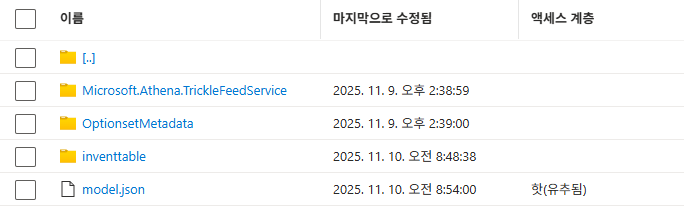
- Changelog : 안에 changelog.info 파일을 보면 현재 업데이트 중인 TimeStamp 폴더이름을 갖고 있다. 시스템이 불안정해질 수 있으므로 파일을 업데이트 하면 안된다.
- EntitySyncFailure : Azure Synapse Link에서 동기화 오류가 발생할 경우 해당 폴더내에 에러가 발생한 Table 명이 저장된다.
- model.json : 최종 업데이트가 발생한 Table 의 csv 증분 파일을 지정하고, csv의 필드구조 정의를 갖고 있다. 사실상 시나리오에서는 TimeStamp내의 model.json만 사용하면 된다.
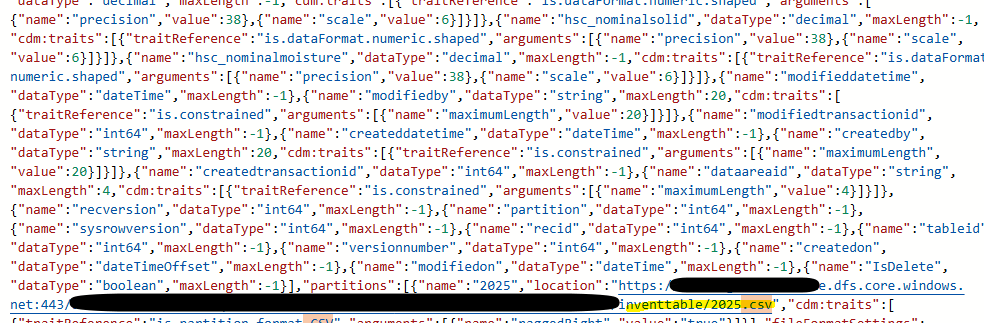
2) 파일의 생성 흐름 파악하기 (15분 간격일 경우)
- 증분이 발생하면 TimeStamp 폴더가 생성된다. 그리고 changelog.info 파일에 현재 생성된 TimeStamp가 기록된다.
- 15분동안 변경이 발생한 데이터에 대해 TimeStamp 폴더 안에 테이블의 변경사항이 기록된 csv 파일이 생성, 변경된다.
- 15분이 지나면 TimeStamp 폴더 내에 변경이 발생된 csv폴더를 지정하는 model.json 파일이 생성되며, root 에 있는 model.json 폴더에 덮어쓴다.
3) 증분된 csv 파일 ADF 로 Trigger 후 Azure SQL로 복사
위 생성 흐름을 파악해보면 증분이 끝나는 시점에 데이터를 Azure SQL로 복사하면 된다.
즉, TimeStamp 내의 model.json 파일이 생성되는 시점으로 Trigger를 발생시키면 된다는 뜻이다.
자 그럼 Trigger에 대한 시점도 알겠는데 저 복잡한 폴더구조에서 어떻게 데이터를 찾아서 Azure SQL 에 복사해야할까?
그것에 대한 답은 이미 Microsoft가 Template으로 제공하고 있다.
상세한 설정과 내용은 아래 MS 가이드에 상세하게 설명되어 있으니 문서를 참고하여 설정해보자.
Dataverse용 Azure Synapse 링크를 사용하여 증분 업데이트 쿼리 및 분석 - Power Apps | Microsoft Learn
Dataverse용 Azure Synapse 링크를 사용하여 증분 업데이트 쿼리 및 분석 - Power Apps
Power Apps 및 Azure Synapse Analytics를 사용하여 사용자가 지정한 시간 간격 동안 Microsoft Dataverse 데이터에 대한 증분 업데이트를 쿼리하고 분석하는 방법을 알아봅니다.
learn.microsoft.com
Template을 사용해도 데이터 복사가 끝난 폴더에 대한 삭제 관리에 대한 부분은 아직 해결되지 못했다.
이 부분을 어떻게 해결할 수 있을지에 대한 고민과 방법은 좀 더 찾아봐야할 듯 하다.
'Dynamics365 ERP > Data Integration' 카테고리의 다른 글
| [Dynamics365] BYOD(Bring your own database) 설정하기 (0) | 2025.11.04 |
|---|